Tutorials
Motion with behaviors
Make a logo pulse, wiggle and multiply with behaviors, change them as it plays, and bake them into keyframes.
This page is also a lesson inside Phoenix: choose and start Motion with behaviors, and Phoenix points at each control as you go. It takes about 8 minutes.
To follow along here instead, download the starting document, behaviors.fla, and open it with .
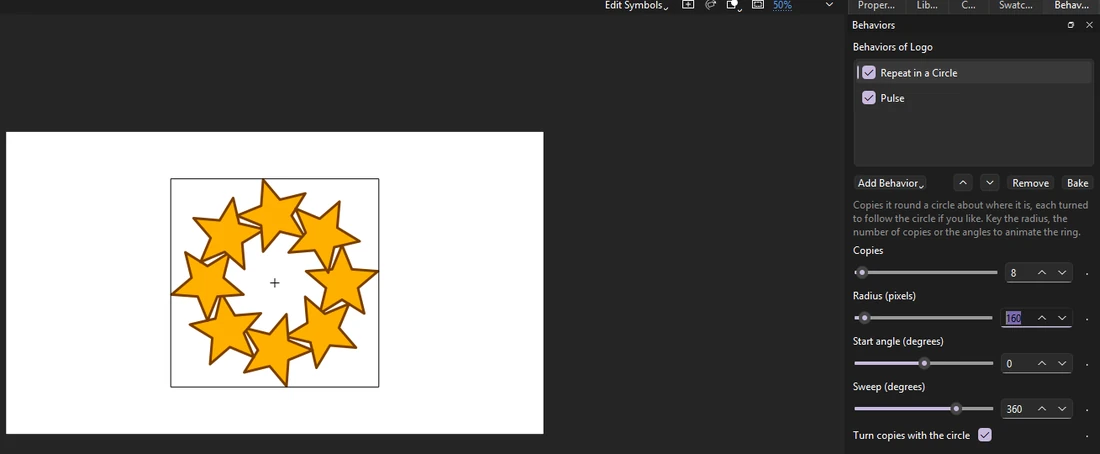
Behaviors give an instance motion that Phoenix works out every frame, with no keyframes: a pulse, a wiggle, a ring of copies. You choose them and set them; there is no code to write.
The document holds a star logo, a graphic symbol, on a timeline three seconds long.
1. Select the logo
Press V for the Selection tool and click the logo on the stage.
2. Open the Behaviors panel
Choose Window > Behaviors if it is not showing. It lists what is on the selection and the settings of each.
3. Add Pulse
Click Add Behavior and choose Pulse. The logo now grows and shrinks like a heartbeat.
4. Play it
Press Enter, or click the play button in the timeline header. The logo beats; there is still only one keyframe.
5. Change it as it plays
Drag Grows by (percent) to about 40, or type it. Changes show at once, even while playing.
Press Enter again to stop.
6. Add Wiggle
Click Add Behavior again and choose Wiggle. Behaviors add up, top to bottom: the logo now beats and shakes about.
7. Repeat it in a circle
Add Repeat in a Circle. The logo becomes a ring of copies, all beating and wiggling together: the pulse and wiggle above it ran once, and the ring copies the result.
8. Order matters
Click Repeat in a Circle in the list and use the up arrow to move it to the top, then play again. Now the ring is made first, and the behaviors after it run once for each copy: every copy beats and wiggles on its own.
The check box beside each behavior turns it off without losing its settings.
9. Bake to keyframes
Click Bake. Every frame becomes a keyframe holding the instances where the behaviors put them, and the behaviors come off. What plays does not change.
Baking is one step: Edit > Undo brings the behaviors back.
What you did
You added behaviors, changed them while playing, saw how their order matters, and baked them.
Behaviors are saved with the document. File > Export > Export FLA for Other Apps writes a copy with them baked, for apps that do not know them. Next, try Write your own behavior.
For everything this tutorial touches on, see Behaviors.