Tutorials
An animated title
Bring a title in letter by letter with letter animators, keep it moving with a wave, and keep the text editable.
This page is also a lesson inside Phoenix: choose and start An animated title, and Phoenix points at each control as you go. It takes about 6 minutes.
To follow along here instead, download the starting document, animated-title.fla, and open it with .
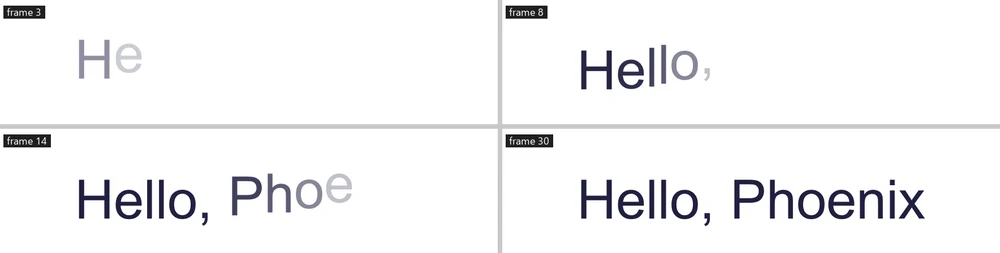
Letter animators move a text field's letters one by one while it stays text you can edit: type a new word and the animation follows.
1. Select the title
Press V and click the title.
2. Open the Behaviors panel
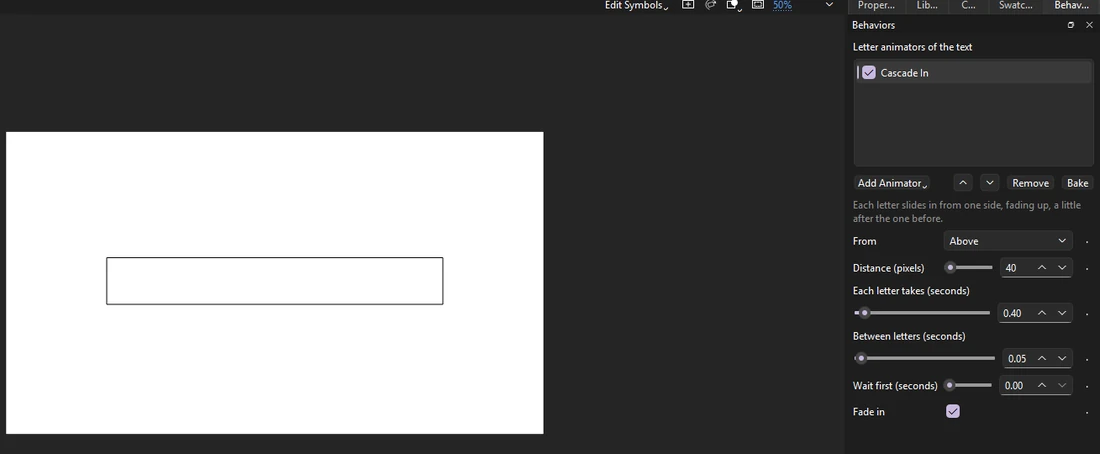
Choose Window > Behaviors if it is not showing. It lists what is on the selection and the settings of each.
3. Cascade it in
With text selected the button reads Add Animator. Click it and choose Cascade In.
4. Play it
Press Enter, or click the play button in the timeline header. Each letter slides in and fades up, a little after the one before.
5. Keep it moving
Add Wave too. Once in, the letters ride a wave for as long as the title shows.
6. Change the words
Press T for the Text tool, click in the title and change the words. Press Esc and play again: the new words animate the same way.
What you did
You animated a title letter by letter and kept it editable.
Try Typewriter, Scramble or Animate Letters, whose range can move, turn, scale and fade any part of the text. Bake makes a text field of each letter, a frame each.
For everything this tutorial touches on, see Behaviors.