Output
Exporting
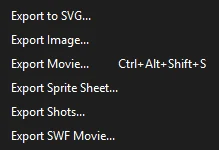
Exports render through the same drawing code as the stage, so what you see is what you get. All export commands are under .
Export Movie
Choose (Ctrl+Alt+Shift+S) to render a range of frames.
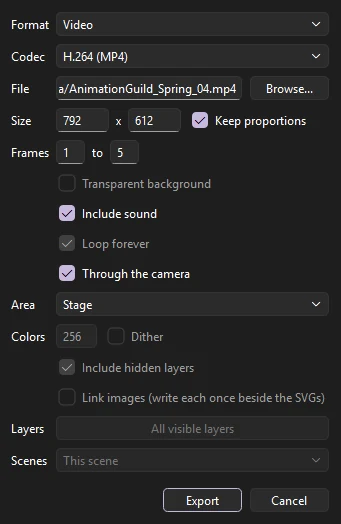
- Format
- What to make. See the table below.
- File
- Where to save it. Browse... picks a location.
- Size
- The output size in pixels. Keep proportions to match the stage's shape.
- Frames
- The first and last frame to export.
- Options
- Transparent background, Include sound, and Loop forever, where the format supports them. Include safe zones draws the safe zones and aspect-ratio frames over every frame, for a review copy. Through the camera renders the scene as its camera sees it; turn it off for the stage as drawn.
- Codec
- For video: H.264 (MP4) to watch and share; ProRes 422 HQ (MOV) for editing; ProRes 4444 with alpha (MOV), which keeps a transparent background, for compositing.
- Area
- Stage, or Everything: all the artwork on the frames, wherever it is, the pasteboard too. The size is then the stage's scale applied to that larger area.
- Colors
- For a GIF, how many colors each frame may use (2 to 256), and Dither to mix them so gradients stay smooth in few colors.
- Layers
- For a sequence per layer, which layers get one. All visible layers until you choose.
- Scenes
- In a document with more than one scene: This scene; All scenes, one after another into one file, the frame range being every frame of every scene; or Each scene to its own file, named after the file and the scene (
movie_Intro.mp4).
| Format | Produces |
|---|---|
| PNG Sequence | One numbered image per frame (name0001.png, name0002.png...), optionally with a transparent background. Ideal for compositing and editing software. |
| Video | With the H.264 codec, an MP4 (or a MOV if you name the file .mov) with the soundtrack mixed in as AAC audio: good quality, plays everywhere. With a ProRes codec, a MOV with the soundtrack as uncompressed PCM audio. |
| Animated GIF | A GIF, looping forever or playing once, with its own color palette for each frame. |
| PNG Sequence per Layer | A separate PNG sequence for every visible layer, with masks applied, for compositing layers separately. |
| Sound (WAV) | The mixed soundtrack on its own. |
| Compositing Passes (PNG), Multi-layer EXR | Line, color and matte passes for compositing. See Compositing passes. |
| SVG Sequence | One numbered SVG per frame, its shapes, strokes, gradients and text kept as vectors. Include hidden layers draws layers you have hidden; Link images writes each bitmap once as a file beside the SVGs (name_image_….png) rather than inside every frame. An adjustment layer works on pixels, so it and the layers under it go into each frame as one picture, at twice the size, with the layers above it as vectors. |
In every export, movie clips play their own animation, guide layers are left out, and locked layers are included. With on, movie clips follow the stop(), play() and goto calls in their frame scripts; see Frame scripts.
About ffmpeg
Phoenix encodes and reads video with ffmpeg, which comes with Phoenix: it is installed beside Phoenix itself, so video export and video import work with nothing else installed. Phoenix always uses its own copy, never another ffmpeg on the machine, so a movie comes out the same everywhere. ffmpeg is a separate program under the GNU General Public License; its license, and where to get the source it was built from, are in the licenses/ffmpeg folder of the installation (on macOS, inside Phoenix.app).
Export Image
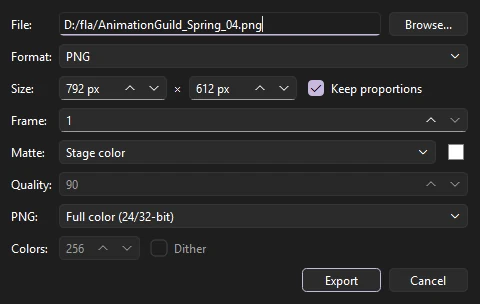
renders a single frame.
- Format
- PNG, JPEG or GIF.
- Size
- Any size, with proportions kept if you like.
- Frame
- Which frame to render.
- Matte
- The background: the stage color, transparent (not for JPEG), or any color.
- Include safe zones
- Draws the safe zones and aspect-ratio frames over the picture, for a review copy.
- Quality
- For JPEG, from 0 to 100. The default is 90.
- PNG
- Full color, or 8-bit: a palette of at most 256 colors, a smaller file for flat-colored art. Transparency is kept.
- Colors
- For an 8-bit PNG or a GIF: how many colors the palette has, and Dither to mix them so gradients stay smooth.
Export to SVG
writes the current frame as an SVG file, which scales cleanly for print and the web. Hidden layers are left out and images are embedded. Masks are written as SVG clip paths, so masked art stays vector; a feathered mask is written as an SVG mask, its shape blurred, so the soft edge stays soft and the art stays vector too. Filters, which SVG cannot express the same way, are included as images, and blend modes draw as Normal.
SWF movies
writes the scene as an SWF movie, for players and pipelines that read SWF. Each frame's shapes, strokes, gradients and text go in as vector shapes, written once and placed again in every frame that shows them; masks clip their art; bitmaps, and what filters make, go in as images; blend modes are kept. Stream sounds go in as a soundtrack streamed with the frames; the scene's event, start and stop sounds go in as sounds of their own, started and stopped on their frames, so they play to the end and loop as set; both compressed as Publish Settings say (see Exporting sound); ActionScript is not written. From the command line, Phoenix render shot.fla --out shot.swf does the same.
Publish
(Ctrl+Shift+F12) chooses what (Shift+F12) writes, beside the document: an SWF movie, an HTML page, and PNG, JPEG, GIF and SVG images, each named after the document or with a name of its own. Images take the stage's size or one of their own. PNG can be 24-bit with alpha (a clear background), 24-bit, or 8-bit with a number of colors; JPEG has a quality and can be progressive; GIF can be still or animated, looping forever, playing once or repeating a number of times, with a number of colors; SVG can include hidden layers and embed its images or write them beside it. SWF sound sets how the movie's sound is compressed: MP3, ADPCM, raw or none, with its quality, sample rate and channels.
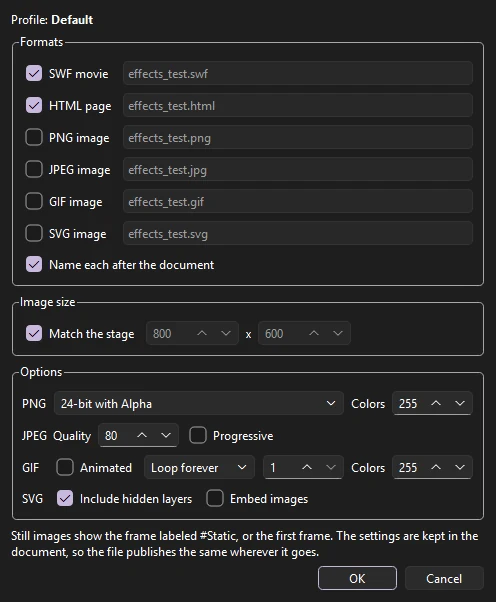
Still images show the frame labeled #Static, or else the first frame. The HTML page shows the SWF movie, or else the first image published. The settings are kept in the FLA file's own publish settings, so a file that was set up to publish elsewhere publishes the same from Phoenix, and every setting Phoenix does not use is kept unchanged.
Sprite sheets
lays the scene's frames out on one PNG for a game engine. To make a sheet of one symbol, right-click it in the library and choose Generate Sprite Sheet...; its frames are drawn on their own, each the size of everything the symbol draws over them. The preview updates as you change:
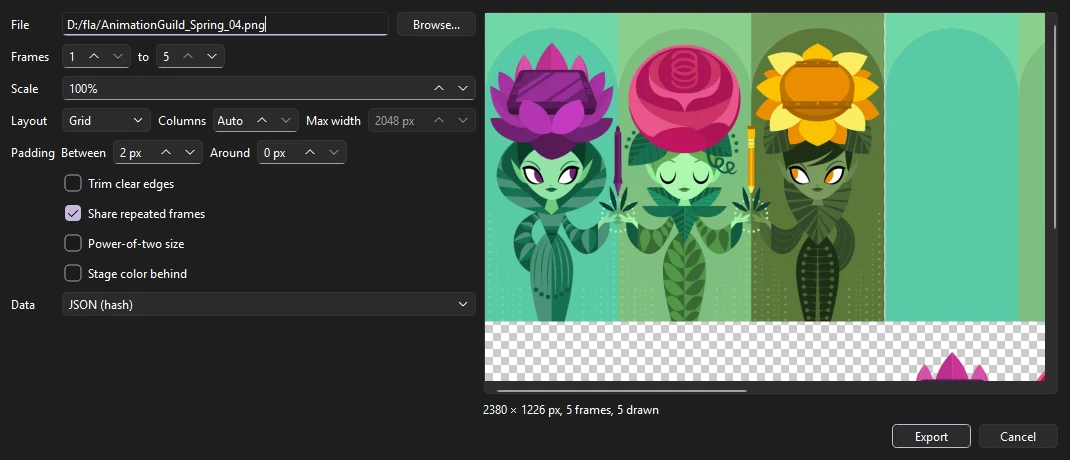
- Frames, Scale
- Which frames, and how big, as a percentage.
- Layout
- Grid puts each frame in a cell the size of the largest, in as many columns as you set (Auto for a sheet as square as fits). One row puts them side by side. Packed fits them closely, tallest first, in rows no wider than Max width.
- Padding
- Clear pixels between frames, so a scaled sprite never picks up its neighbor, and around the sheet.
- Trim clear edges
- Keeps only each frame's drawn pixels. The description says where they sit in the whole frame, so the sprite stays put as it plays.
- Share repeated frames
- A frame the same as an earlier one points at its pixels rather than taking room of its own.
- Power-of-two size
- Rounds the sheet's sides up to 256, 512, 1024 and so on, for engines that want it.
- Stage color behind
- Off, the sheet is clear wherever nothing is drawn.
- Data
- A JSON file beside the image with the same name, describing each frame's place, trim and size, in the hash or array layout most engines and texture tools read; or none.
Render queue
lines up renders and runs them one after another, each in a Phoenix of its own with no window, so you can keep working while they run. Add Current queues the open document (saving it first if it has changes); Add Files... queues others. Each job has an output (a folder for a PNG sequence, or a file ending in .mp4, .mov, .gif, .svg or .swf), a frame range, a size, the scenes to render (the one the document opens on, one by name, all of them into one output, or each to its own), and the options the command line takes: a transparent background, no camera, the pasteboard too, ProRes, a PNG sequence per layer, compositing passes, no sound, the safe zones drawn over the frames.
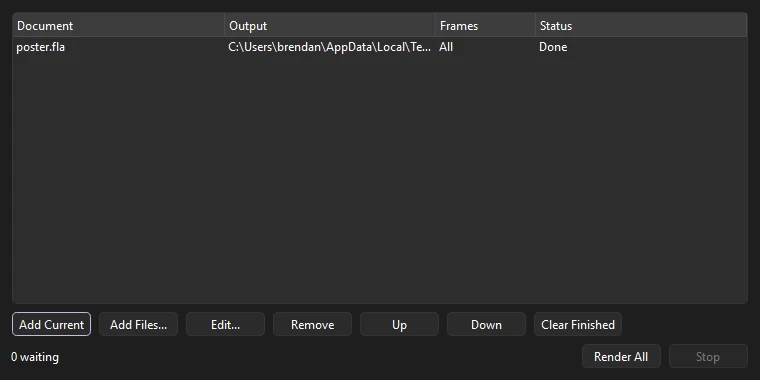
Render All runs every waiting job in order, and Stop ends the one running. A job shows Waiting, Rendering, Done or Failed; hold the pointer over a failed job to see why. The queue is kept when Phoenix closes.
Export Shots
splits a saved episode into shot files, cut at frame labels, scenes or camera cuts, saved as FLA files, Phoenix documents or XFL folders in the folder you choose. See Shots, assets and review.
Exporting without opening Phoenix
Every movie and image export can also run from the command line, for batch jobs and render scripts. See Command line.
Compositing passes
For compositing, choose a passes format in :
- Compositing Passes (PNG) writes three numbered sequences: line (the strokes alone), color (the fills, text and bitmaps alone) and matte (the coverage of everything, white on black). The line and color passes have no background.
- Multi-layer EXR writes one OpenEXR file a frame holding the whole picture as its main layer and the passes as layers named
line,colorandmatte, in linear light with premultiplied alpha, as compositing software expects.
From the command line, add --passes or --exr to Phoenix render (see Command line).