Reference
Settings and preferences
Phoenix remembers the choices you make as you work, and you change most settings where you use them. A few general ones are in the Preferences dialog, and almost every key can be changed in Keyboard Shortcuts.
Preferences
Choose (Ctrl+U). The General group has the first four settings, the Drawing group the next three, and AI Assistants the last. Changes apply when you click OK.
- Undo levels
- How many steps Edit › Undo can go back, 200 unless you change it. The oldest steps are let go as new ones come; No limit keeps them all, at the cost of memory.
- Auto-recovery
- How often a recovery copy of unsaved work is written, or Off. The same setting as .
- At startup
- Show the start screen. Turn it off and Phoenix reopens your most recent file instead. Reopen documents from last time, on unless you turn it off, opens the saved documents that were open when you quit, each in its tab; the start screen then shows only when there were none.
- Highlight
- Layer color outlines a selection in its layer's color; One color outlines every selection in the color you pick with the button beside it.
- Click accuracy
- How near a click must be to a line or a point to pick it: Strict, Normal or Tolerant.
- Connect lines
- How near the ends of a Straighten pencil line must be to be joined into a closed shape: Must be close, Normal or Can be distant.
- Pen
- Show pen preview draws the next segment to the cursor before you click; Show solid points draws the pen's anchors filled.
- AI Assistants
- Let AI assistants connect (MCP) lets an assistant on this computer work in the Phoenix you have open, on the Port given. Off by default. See AI assistants.
Keyboard shortcuts
Choose (Ctrl+Alt+Shift+K) to see every menu command and tool with its key. Type in the search box to find a command by name or by key. Select a command, click in the Shortcut box and press the keys; a key another command had is taken from it, and the dialog says which. Keys given to two commands show in red, and keys you have changed in bold. Clear takes the key off the selected command, Default gives it its own key back, and Reset All gives every command its own.
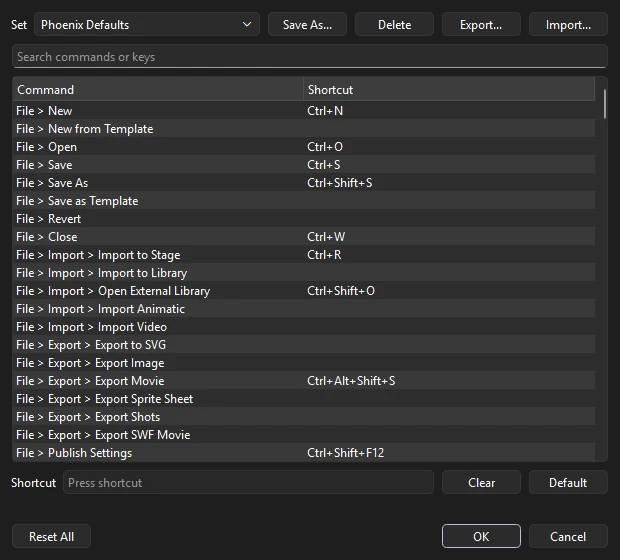
Save your keys as a named set with Save As, switch between sets from the Set list, and remove a set of your own with Delete. Export and Import pass a set to another machine as a JSON file.
The Set list starts with two built-in sets. Phoenix Defaults gives every command its own key. Animate Standard uses the keys most animators who work with FLA files already know, for the commands Phoenix has. Phoenix's own keys are the same for every command both have, so the set mostly takes away the keys of commands only Phoenix has. A key the set gives one command is taken from any command that had it.
Import also reads shortcut sets exported from other animation software, as XML or as a text list of commands and keys. Each command is matched to Phoenix's by its menu and name, or by the other name it is known by where Phoenix names it differently. Keys written for macOS (Cmd, Option) become Ctrl and Alt. Phoenix then says how many were matched and lists the commands it does not have.
From the command line, Phoenix shortcuts lists every command with its key, and Phoenix shortcuts --defaults lists Phoenix's own.
What Phoenix remembers
| Setting | Where you change it |
|---|---|
| Recent files (the last ten) | and the start screen |
| Whether the start screen appears | Show at startup on the start screen |
| Auto-save interval | or Preferences |
| Grid shown over the art, Clip Content Outside Stage, Pasteboard, Dim Outside Document, Lock Guides | The View menu, and the stage controls on the edit bar |
| Mute Movie Clip Sounds | The View menu |
| Enable Simple Frame Actions | The Control menu |
| Frame size, row height, frame previews, time in seconds and span based selection | The frame view menu (☰) in the timeline header |
| Window size and panel layout | Arrange the window and panels; they are restored next time |
| Saved workspaces, and the one in use | |
| Which tools the Tools panel shows, and in what order | |
| The theme, your own themes, and the UI scale | |
| Keyboard shortcuts and saved shortcut sets | |
| Undo levels, highlight, click accuracy, connect lines and pen display | |
| The format new documents save in | |
| Outliner shown or hidden, and its width | , or drag its edge |
| Each tool's settings, including each brush's | The Tool tab of the Properties panel |
| Onion skin range, mode, opacity and colors | |
| High-quality anti-aliasing, Snap to Pixels | The View menu |
| Last New Document size and frame rate | The New Document dialog |
| Symbol type and registration | The Convert to Symbol dialog |
| Last export format and its options | The Export Movie and Export Sprite Sheet dialogs |
| Jobs waiting in the render queue | |
| Default swatches for new documents | Save as Default in the Swatches panel menu |
| The program bitmaps open in with Edit With | The Library |
| Your name on review notes | The Review Notes panel |
| Saved custom eases, motion presets, brush presets and filter presets | Where each is saved: the Custom Ease dialog, the Motion Presets panel, Brush Properties and Presets, and the Properties panel's Filters section |
| Last folders used to open and import | The file dialogs |
Settings saved in the document
Some settings belong to a document rather than to Phoenix, so they travel with the file: the stage size, frame rate and color, ruler guides, Snap to Guides, Snap to Objects, and the swatches.
Where settings are stored
On Windows, Phoenix keeps its settings in the registry under HKEY_CURRENT_USER\Software\Phoenix\Phoenix. On macOS, they are in Phoenix's preferences file in ~/Library/Preferences. Themes you save are .phxtheme files in a themes folder in Phoenix's application data folder, templates you save are in a Templates folder beside it, and auto-save recovery copies are kept in Phoenix's local application data folder. Removing these resets Phoenix to its first-run state.
To keep the settings somewhere else, for tests, demonstrations or a shared machine, set the PHOENIX_SETTINGS_DIR environment variable to a folder before starting Phoenix. Phoenix then keeps its settings in INI files in that folder instead.
Settings a studio can configure for every machine at once.